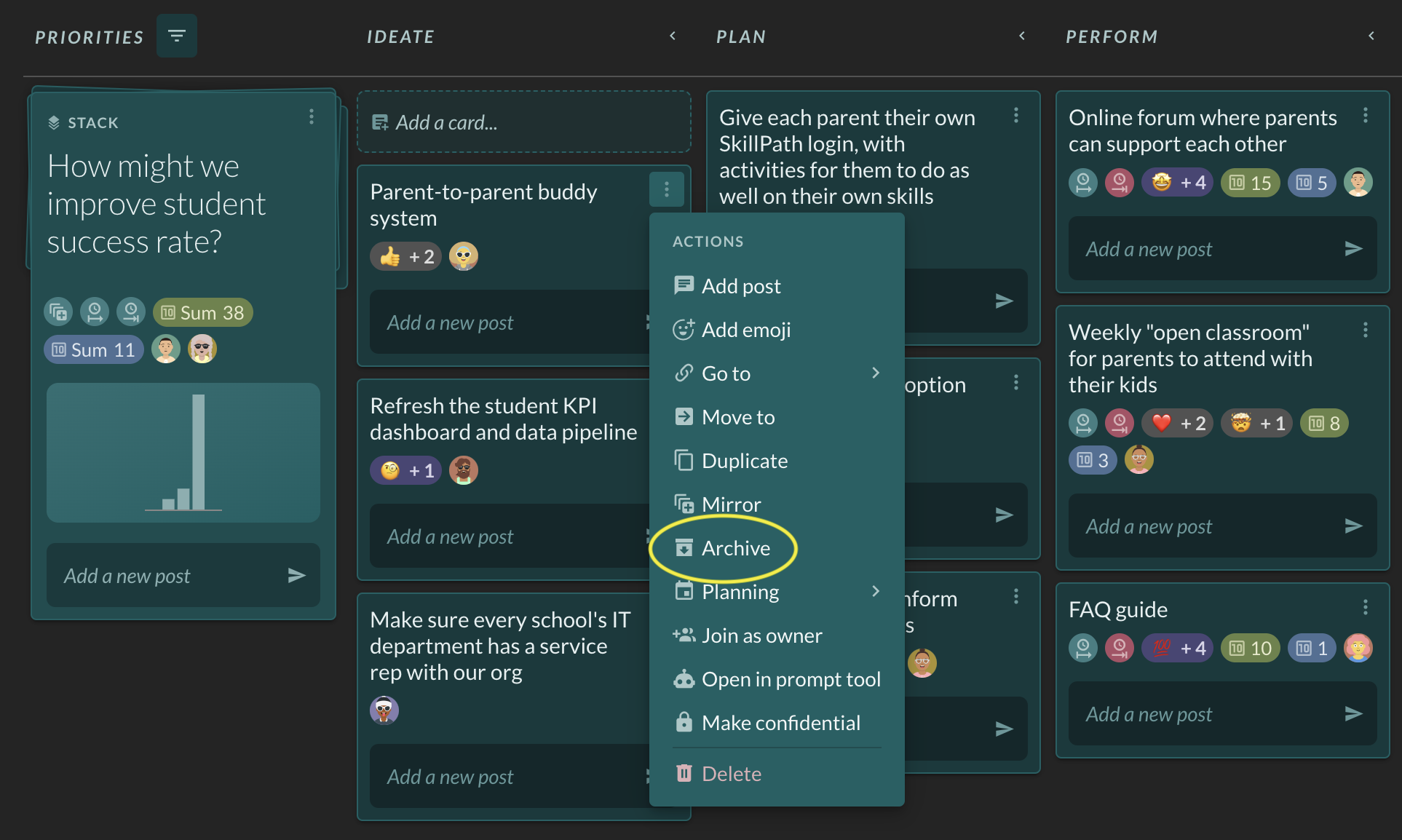
How to make a stack or card confidential

Factor is designed to make work transparent, because sharing early, even before things feel “perfect,” helps teams collaborate, give feedback, and move faster.
That said, there are times when work really does need to stay private:
- HR or personnel-related matters
- Legal discussions
- Early-stage ideas that need quiet space to develop
Before you make a stack or card confidential, pause and ask yourself: does this really need to be hidden? Many times, sharing “in layers” - updates, drafts, and feedback - is more powerful than holding back.
But when something truly needs to stay private, here’s how to make a stack or card confidential in Factor.
Steps to Make a Stack or Card Confidential
- Open either the board view or the side view (when the card or stack is open).
- Click the three-dot icon in the top-right corner of the stack or card.
- Select Make Confidential from the dropdown menu.
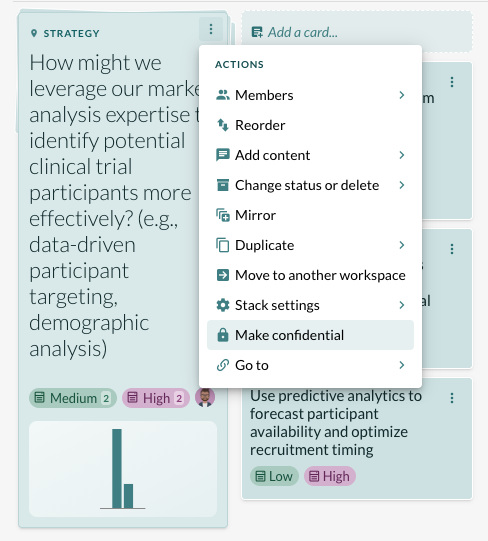
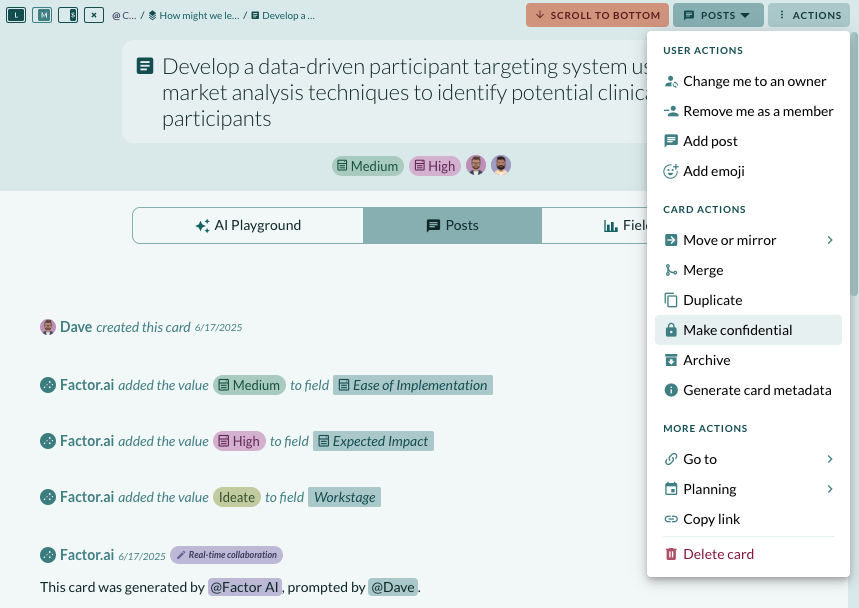
- Confirm that the right members are added:
- Important: If a stack is confidential, make sure to add everyone at the stack view first. Members cannot access a card if they are not already a member of the confidential stack.
- Need help updating members? See instructions below.
Steps to Update Members of a Stack or Card
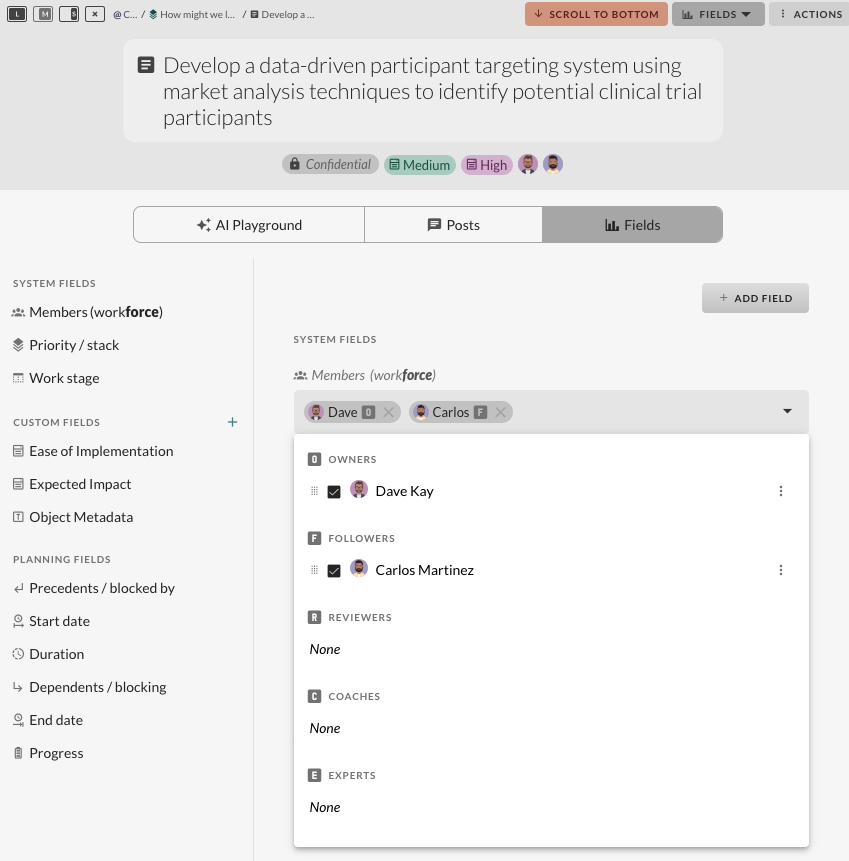
- Open the stack or card.
- Go to the Field tab.
- Locate the Members (Workforce) section and update the members as needed.
- Only added members will have access to the content if it is confidential.
Pro Tip: Once a card is confidential, you cannot mirror it into other stacks. Confidentiality also limits what actions you can take with that card, so useit wisely.
Reminder: Only members you explicitly add to the stack or card will be able to view confidential content.