What is a card in Factor?

In Factor, a card represents any unit of work. Cards are managed in stacks. It could be a feature, a task, an idea, an item moving through a process, a person in a recruiting funnel, a prospective client in a client development flow... you get the point. In Factor, cards are where the main action is. If you're discussing something important, don't be surprised to hear someone say, "do we have a card for that?" or "put that in the card".

There are two ways to create a card - on the board, and in a stack’s side panel.

To create a card on the board:

  1. Click on the workspace you want to add the card to and click on the Board app below it.
  2. Within any stack, click any space that says “Add a card”.
  3. Type the name of the card and hit enter. The card will pop into place.
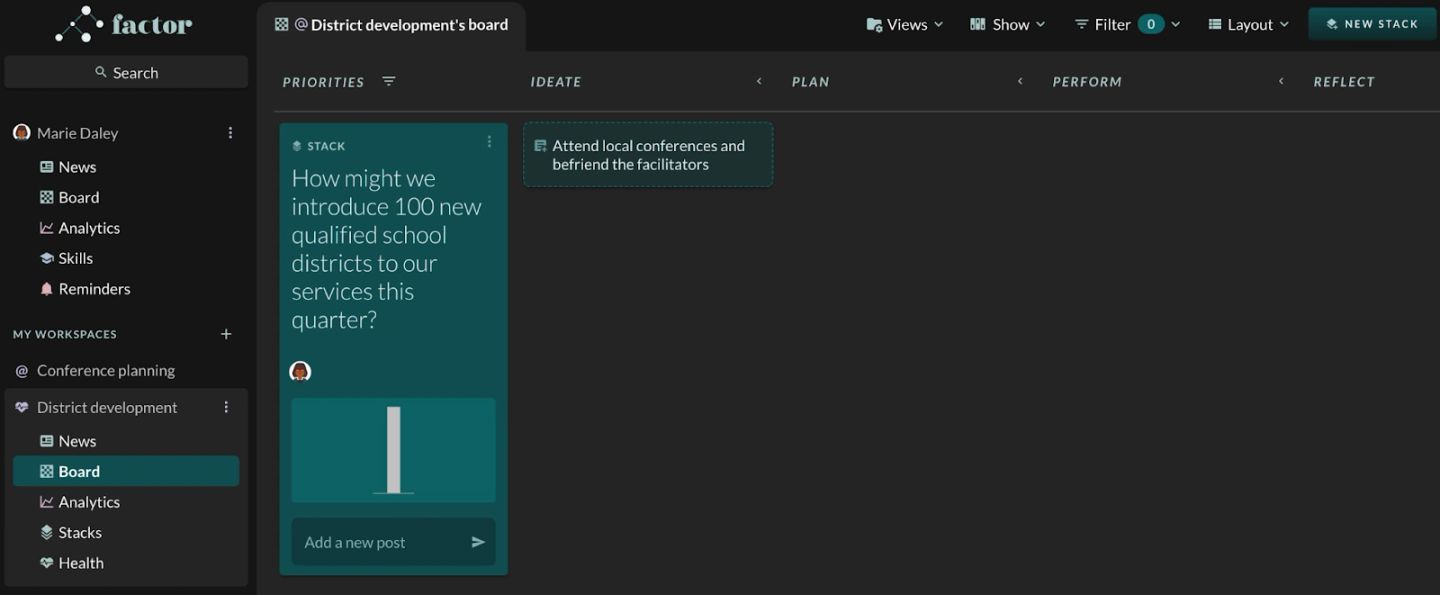
A card mid-creation on "@ District development's board": the dashed new-card tile in the IDEATE column already holds the typed title "Attend local conferences and befriend the facilitators", but the return key has not been pressed, so it is still an outlined placeholder rather than a card. To its left is the stack it will belong to, "How might we introduce 100 new qualified school districts to our services this quarter?".
The same board after the return key: "Attend local conferences and befriend the facilitators" is now a solid card in the IDEATE column with an owner avatar and its own "Add a new post" box, and a fresh "Add a card…" tile has moved above it ready for the next one. That composer on the card face is the point — a card is a place to talk, not just a title.

If you don’t see any place that says “Add a new card”:

  1. Click “Show” in the top nav bar.
  2. Hover over “Content add field”, then click “Add card”.
The "Show" menu open with "Content add field" expanded, and the submenu is where the missing add-a-card affordance comes from: "Add post" is ticked, "Add card" is not. The rest of the menu shows "SYSTEM FIELDS" with "Owners", "Emoji tag" and "Chart" ticked and "Status (e.g. \"Mirrored\" …)" off, plus the note "This board doesn't have any custom fields yet." under "CUSTOM FIELDS" and an unticked "Due date". Behind it the two stacks show only post composers, no card tile.
  1. If you still don’t see a place to add a card, then that means the board’s view is currently set to Gantt or Table. Check which view the board is set to by clicking “Layout” in the top nav and hovering over the top selection.
The "Layout" menu open on a board that has been switched to Gantt, which is how you confirm the layout is the reason no "Add a card" tile appears. The choice list shows "Kanban", "Gantt" (ticked), "Table", "Gallery", "Roadmap" and "Stacks only", and the panel beside it reads "Layout   Gantt" and "Timescale   By month" over "Expand all", "Collapse all" and "Export". Behind, the "Title" column lists the two stacks collapsed to one row each, with a purple "Now" marker on the timeline.
  1. To add a card in the Gantt or Table view, click the arrow next to the relevant stack. Each existing card will show up as a row, and the bottom row will have a space to add a card.
A narrow strip of the Factor web app in a browser, showing a saved view named "Rich's view" over the Kanban columns "PRIORITIES", "IDEATE", "PLAN", "PERFORM" and "REFLECT". A single stack, "Client Y", sits under PRIORITIES with an "Add a card…" tile beside it in IDEATE — the affordance the step is asking the reader to find, though here it is the Kanban layout rather than the Gantt or Table row-expansion the surrounding text describes.