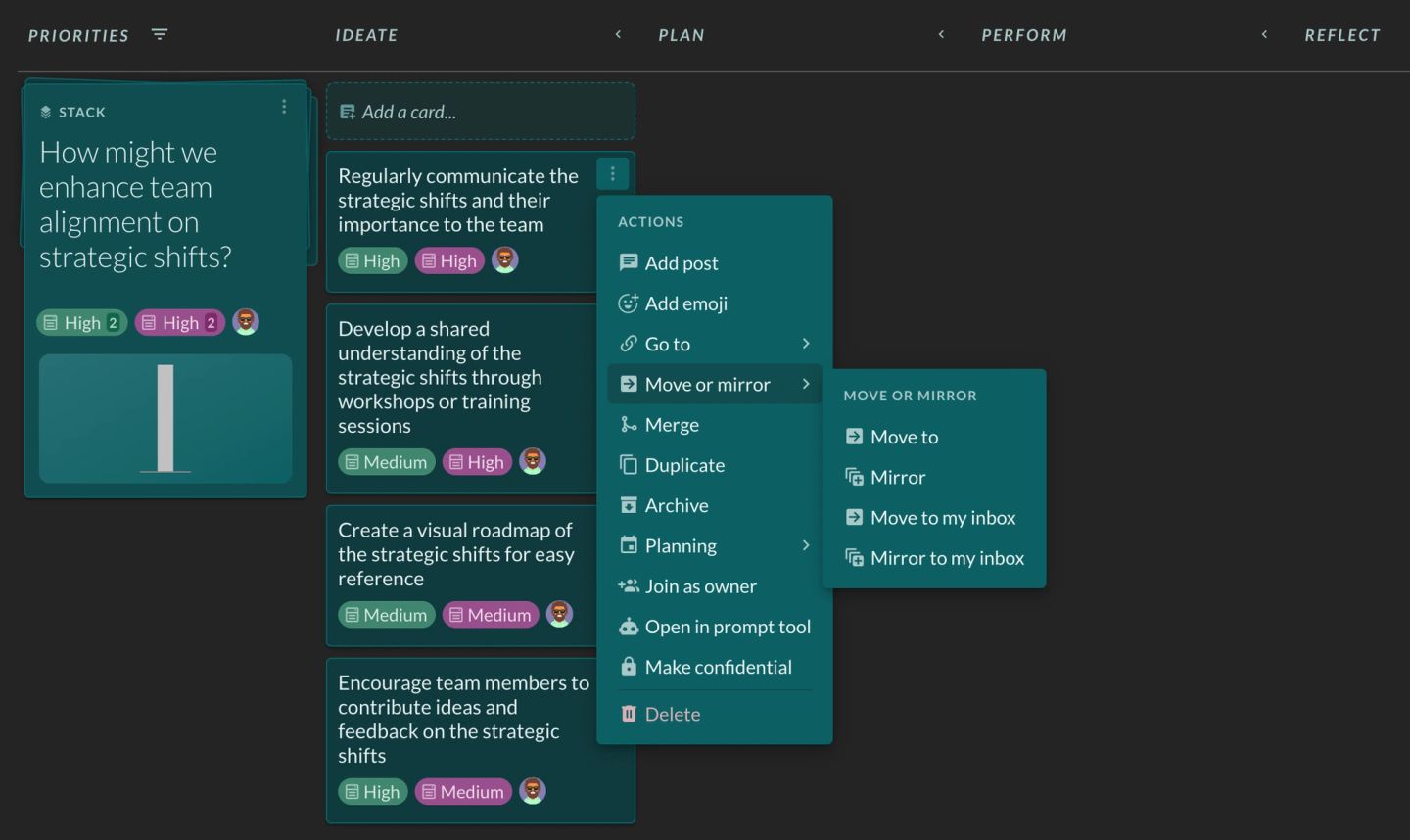
Mirroring is an extremely powerful feature in Factor. Mirroring a card or stack allows it to appear in more than one workspace at a time. This is great for many use cases, including but certainly not limited to:

  • A manager making a board that mirrors in the top priority stack owned by each of their direct reports
  • A business unit leader mirroring a business unit’s high-level priority stack into every workspace executing a subset of that priority
  • Mirroring all the most important stacks you are working on into your personal workspace (which can be found at the top of the left panel)
  • Mirroring a stack into all the workspaces where a piece of the work is being managed or executed

How do I mirror a stack or card?

  1. Click on the stack or card's three-dot menu.
  2. Click “Move or mirror”.
  3. Click "Mirror".
  4. Click on the workspace or stack you would like to move the item to. If you don’t see it, search for it in the search bar, then click on it.
  5. If you're mirror a stack, the selected a stack will appear on the workspace you’ve selected. It you're mirroring a card, it will appear in the stack you've selected. It will also gain a new icon to signify that it has been mirrored. The icon looks like squares stacked on top of each other; the top one has a + sign on it.
  6. To check that the stack or card has been mirrored properly, hover over the mirror icon and a popup will show all the places where it is mirrored.
A board in dark teal — columns PRIORITIES, IDEATE, PLAN, PERFORM, REFLECT, with the stack "How might we enhance team alignment on strategic shifts?" at the left — and a card's three-dot ACTIONS menu open. "Move or mirror" is highlighted and its submenu, headed MOVE OR MIRROR, gives the four choices the instructions turn on: "Move to", "Mirror", "Move to my inbox" and "Mirror to my inbox". The rest of the menu offers "Add post", "Add emoji", "Go to", "Merge", "Duplicate", "Archive", "Planning", "Join as owner", "Open in prompt tool", "Make confidential" and "Delete".
The destination picker that opens after "Mirror" is chosen: a panel headed by a search box reading "Find a @workspace...", then every place the item could land. Personal workspaces appear with a photo avatar ("Marie Daley's workspace", "Kayla Holmes's workspace", "Sterling's workspace", "Sara Lee's workspace", "Melisa Guzel's workspace", each with its owner's email beneath), and shared workspaces with an @ and their member avatars — "Conference planning", "District development", "High level strategy", "Ops materials", "Product strategy", "Sales funnel", "Service strategy". Behind it sits "Marie's view" of the "Ohio North rollout" board and the left panel.
The check the instructions ask for: hovering the mirror icon on a stack pops a tooltip listing everywhere that item now lives. It names the stack, "What are our mission critical deliverables?", then a downward arrow, then two destinations — "@ Ohio North rollout" and "@ Ops materials". The stack's chip row has gained the mirror icon (stacked squares, the top one bearing a plus) alongside its other field chips.