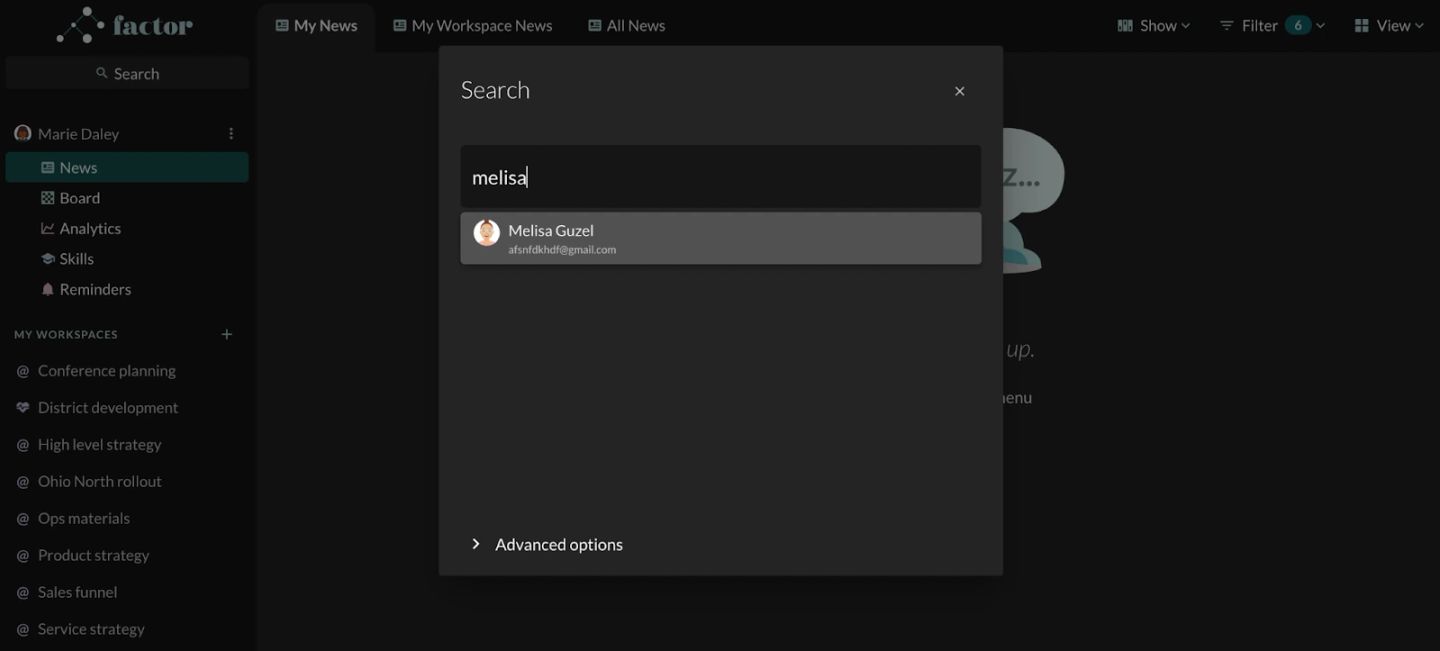
To make changes to someone else’s reporting line, use the search functionality at the top-left corner of your screen.

1. Use the search box to find the right person, and click their name to open their profile side-panel.

The search overlay opened from the top-left of Factor, dimming the News page behind it. The box has "melisa" typed into it and one result is offered below — a row with an illustrated avatar, the name "Melisa Guzel" and her email beneath. "Advanced options" sits collapsed at the foot of the panel. Clicking the person's name is what opens their profile side panel.

2. Click the 3-dot menu item to the right of “Actions”.

3. Click “Change leader” and follow the prompts.

Melisa Guzel's profile side panel, opened at medium width (the L / M / S size buttons sit top left with M active), her illustrated avatar and name centred. The tab strip reads "Posts", "Info" and then the three-dot "Actions" button, whose menu is open: under WORKSPACE POSTS, "Add post" and "View posts"; under ACTIONS, "Go to", "Change leader" — highlighted, the item this step needs — and "Deactivate colleague".

Note: If that person is also a leader, their direct reports will automatically move and stay with them if you move them. If you need to edit their direct reports’ individual reporting lines first, repeat steps 1-3 for each direct report.