How do I make a Skill plan to help focus my learning?

The Skill plan view helps you focus on your skill goals and collaborate with others to achieve them. You can access it by clicking “Skill plan” at the top of the screen in the Skills app.

The skill plan uses a Kanban layout by default. The purpose is to come up with specific tasks and deliverables you can take on to practice the skill in question, plan out specific moments to do those tasks, track your learnings, and reflect on them with your coach (or manager, or team lead - whatever word your team uses!).

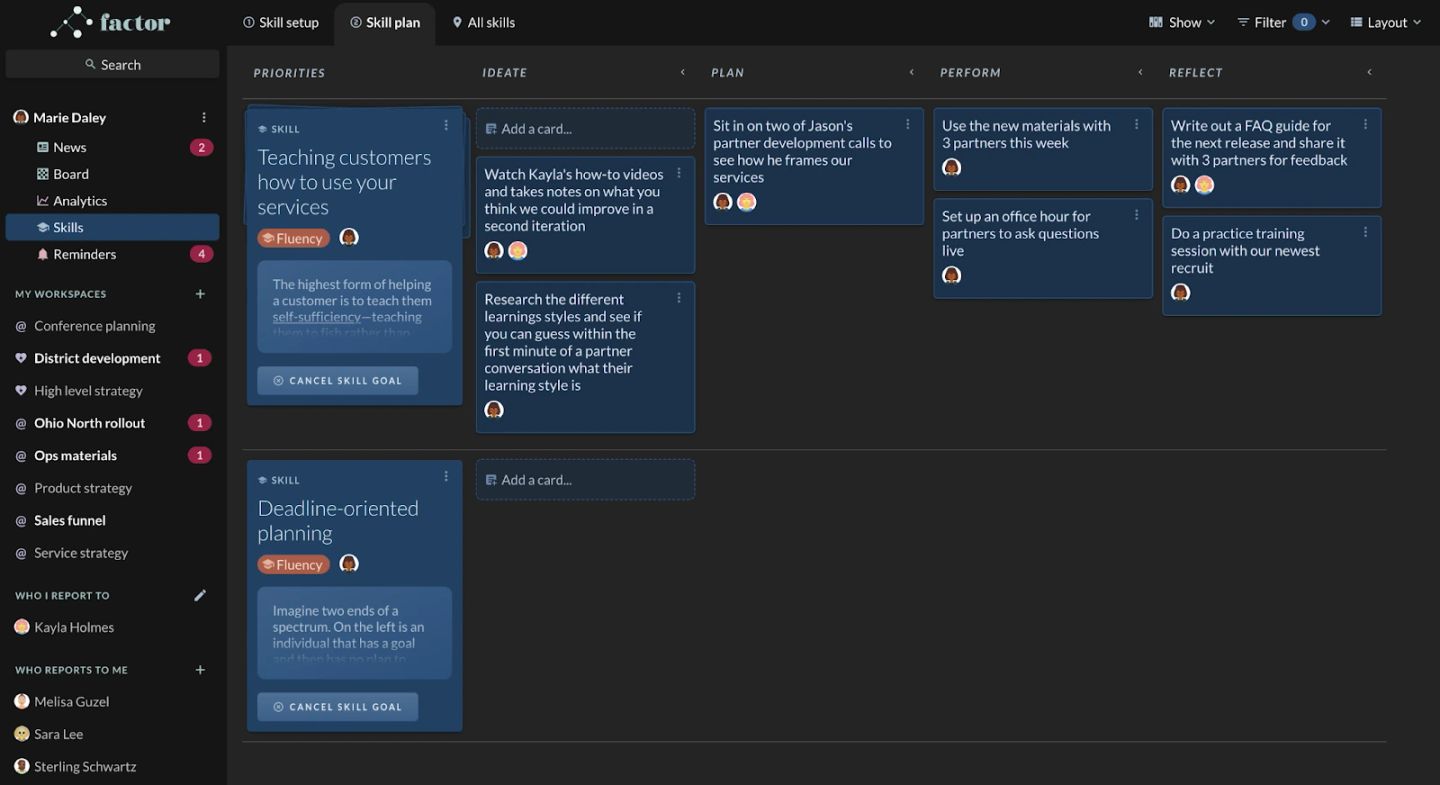
The Skills app's "Skill plan" tab, laid out as a Kanban board whose columns are the learning cycle: "PRIORITIES", "IDEATE", "PLAN", "PERFORM", "REFLECT". Two skill goals hold the PRIORITIES column — "Teaching customers how to use your services" and "Deadline-oriented planning", both tagged "Fluency" and each carrying a "CANCEL SKILL GOAL" button — and the first one's row is filled out across the rest with concrete practice tasks: watching a colleague's how-to videos and noting improvements (IDEATE), sitting in on two of a colleague's partner development calls (PLAN), "Use the new materials with 3 partners this week" and setting up a live office hour (PERFORM), writing an FAQ guide and running a practice training session with a new recruit (REFLECT). The left panel supplies the collaboration context the plan assumes — "WHO I REPORT TO: Kayla Holmes" and "WHO REPORTS TO ME: Melisa Guzel, Sara Lee, Sterling Schwartz".