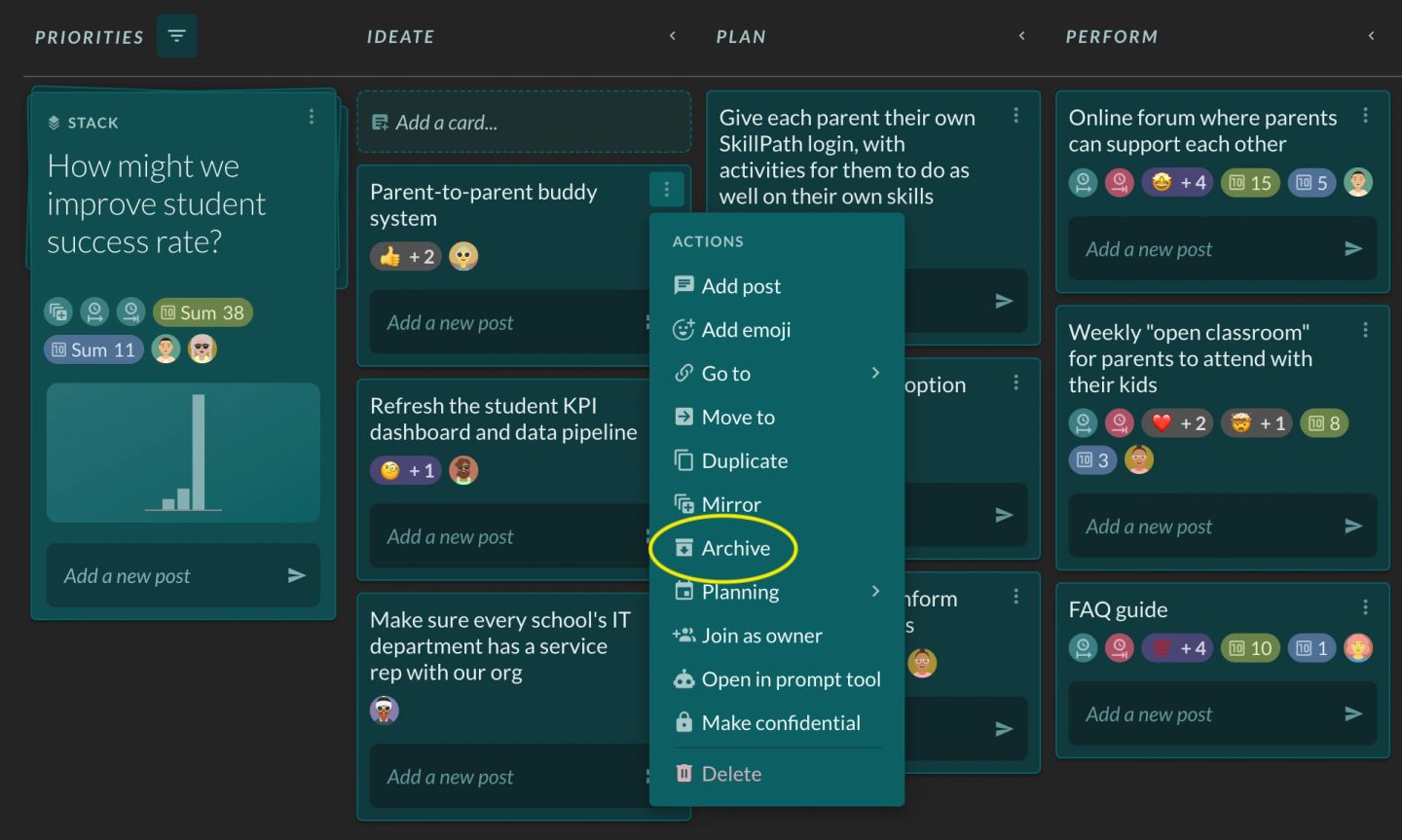
To archive a card or stack in Factor:

  1. Click on the three-dot menu at the top right of the card or stack.
  2. Click "Archive".
A card's three-dot menu open on the board, headed "ACTIONS", with "Archive" ringed in yellow. The full list is "Add post", "Add emoji", "Go to", "Move to", "Duplicate", "Mirror", "Archive", "Planning", "Join as owner", "Open in prompt tool", "Make confidential" and, set apart at the bottom in red, "Delete" — the distinction the step depends on, since archiving is the reversible one. The menu belongs to the card "Parent-to-parent buddy system" in the IDEATE column.
A stack's three-dot menu, which splits into two sections, and "Archive" — ringed in yellow — sits in the upper one. "ACTIONS FOR THIS MIRROR" holds "Un-mirror from @ ! Ohio North ro…", "Mirror settings", "Reorder", "Join as owner", "Move to another workspace", "Remove from Board (to Stacks)" and "Archive"; "STACK ACTIONS" below holds "Generate cards with AI", "Add post", "Add emoji", "Go to", "Make confidential", "Mirror", "Add field", "Duplicate", "Duplicate as template" and "Delete". Archiving therefore applies to this board's copy of the stack, not to the stack everywhere.

The card or stack will disappear from the board and be moved to the board's archive.

If the card or stack is mirrored, then it will still remain in place on all the other boards where it appears. In other words, archiving mirrored cards and stacks is managed separately on a board by board basis.

Retrieving archived cards and stacks

If a card or stack is archived, it can be retrieved at any time.

There are two methods for retrieving archived cards and stacks.

Method 1: Search

Archived cards and stacks show up in search. To find and unarchive an archived card or stack:

  1. Click "Search" in the upper lefthand corner of Factor.
  2. Start typing out the title of the card or stack. If you're typing it out correctly, it will appear in the search results with a red "Archived" label next to it.
  3. Click on the card or stack. Its side panel will appear on the right side of the page.
  4. Click on the three-dot menu with the label "Actions" at the top right of the page.
  5. Click "Unarchive". The card or stack will appear right back where it was when it was archived.
The search overlay with "parent-to" typed in, and two things ringed in yellow: "Search" at the top of the left nav, and the first result — "Parent-to-parent buddy system" carrying a red "Archived" tag, with its location shown underneath as "@ ! Ohio North rollout / How might we improve student success rate?". Archived items are still indexed, so search is the fastest route back to one; the remaining hits are ordinary stacks and cards with no such tag.
The side panel of an archived card, opened from search. The breadcrumb reads "@ ! Ohio North rollout +1 / How might we improve student success rate? / Parent-to-parent buddy system" followed by a small archive-drawer icon, and the "Actions" menu at the top right is open with "Unarchive" ringed in yellow, sitting where "Archive" would be on a live card. Behind the menu the Posts feed logs the card's field history — "Marie changed the field Start date from 3/16/2023 to 5/07/2023" and similar — showing the record survives archiving.

Method 2: Manually find the card or stack

Every stack has an archive full of archived cards, and every workspace has an archive full of archived stacks.

To find and unarchive a card in a stack:

  1. Click on the stack to open its side panel.
  2. Click on the "Cards" tab. This will show all of its cards in the Kanban Work Stage Layout, including archived cards. Archived cards will be decorated with a red symbol that looks like an file drawer.
  3. Visually locate the card you want to unarchive. It will still be in the Work Stage column it was in when it was archived. (Pro tip: you can use your browser's finder function - usually Command + F - to search for the card by name on the page.)
  4. Click on the card's three-dot menu, then click "Unarchive". The card will appear back where it was when it was archived. NOTE: if a mirrored card has been archived in multiple stacks, it must be unarchived on a stack by stack basis.
A stack's side panel opened over the board with the "Cards" tab ringed in yellow, listing every card in the stack in the Kanban work-stage columns "IDEATE", "PLAN", "PERFORM" and "REFLECT" — archived ones included. The archived "Parent-to-parent buddy system" is still in IDEATE where it was left, marked by a red archive-drawer chip on its face, and its three-dot menu is open with "Unarchive" ringed. The stack header shows a "Mirrored" chip, the reason an unarchive here only affects this stack.

To find and unarchive a stack in a workspace:

  1. Click on the workspace where the stack was archived.
  2. Click on the "Stacks" app in the left side nav.
  3. Click on the Filter menu, then click "Archived". Only archived stacks will be shown.
  4. Click on the three-dot menu at the top right of the stack.
  5. Click "Unarchive". The stack will appear back where it was when it was archived. NOTE: if a mirrored stack has been archived in multiple workspaces, it must be unarchived on a workspace by workspace basis.
The workspace's "Stacks" app — ringed in the left nav — filtered down to archived stacks: the "Filter" menu at top right is ringed and open on "STATUS" with tick boxes "On Board", "Off Board" and "Archived", only "Archived" ticked and also ringed. One stack survives the filter, "How might we improve student success rate?", and its three-dot menu is open with "Unarchive" ringed in the "ACTIONS FOR THIS MIRROR" section.